Aspire Data Warehouse IRM tagging Standards
urn:js:virtue:aspire:standard:28.1
TL;DR
IRM tagging procedure.
Definition
We are leveraging SF object tagging feature to associate an IRM tag to objects in Aspire. This page is aimed at covering procedure related to 1) Creating new L1/l2/l3 IRM areas and Tags 2) Associating a tag to ASpire object.
IRM Metadata Amendments
When there is a need for adding new IRM L1/L2/L3 areas (this is a rare situation) get in touch with OpGov team. New IRM areas has to be added in Alation first and the plan is to setup a workflow within Alation to trigger emails to Data Architect Managers when this is done. Once the IRM areas are added to Alation , based on the email notification Data architect managers would then add the IRM areas to the Metadata tables in Snowflake and associate a 4 character lookup code to it. Metadata for IRM tags can be found in ADW_DEV.ADW_METADATA_PL.IRM_ENTITY_LOOKUP table.
Baselining Guidance( Rules used to tag existing objects)
Every object was tagged with a Primary IRM and up to 10 Linked IRMs following the Tag structure published here https://github.com/sainsburys-tech/snowflake-schema-directory/blob/main/tags/irm.schema.json.
Following rules were applied to establish baseline for tagging.
PL
1) For fact tables, tag everything but the keys based on primary purpose for which the fact table was created. Linked IRMs can be populated for the attributes/measures linked to the core attributes. For eg:- sales Fact table might have system reduction/ store markdown price as additional measures. In this case Line Item IRM L3 could be the Primary IRM and Markdown IRM L3 could be Linked IRM. Tagging based on the keys or Tagging down to the attribute level is not required.
2) We believe tagging dimensions may not be as complicated as fact as it is mostly capturing collection of reference information for a single subject area and can be easily grouped into Primary and Linked IRM ( if any) areas.
3) EXT tables doesn’t have to be tagged at this point although EXT tables are included in the extract . Kindly ignore those for now.
4) Where an L3 IRM area doesn’t exist in the drop down / the object can’t be associated to an IRM L3 level, Please associate an L2 IRM area. There shouldn’t be any object that needs tagging directly to L1 IRM area but if you come across one let the DAMs know
RDV/BDV
1) HUBs are aligned to business areas/concepts hence we believe it should be straightforward to tag.
2) SAT s hold lists of attributes for the business concept and the corresponding track of changes hence it shouldn’t be a problem to tag SATs
3) LINKS - Collects records of relationships between different business concepts/areas and the attributes describing the relationship. Primary and Linked IRM can be used to tag the different business concepts linked in the object. For Eg: - List of customers and their corresponding Nectar collector card numbers and the collector status could be linked to Primary IRM -> Nectar Loyalty Collector IRM L3 and the linked IRM could be Single account ID IRM L3 , Customer status IRM L3 etc. In cases of ambiguity kindly take the source system into consideration for deciding on appropriate IRM tag, For eg:- Feeds from RMS could be mainly focusing on Product/Price /Promotion aspects.
4) TRAN Links - Records an immutable event that links multiple business areas. For Eg:- List of sales transactions happened on a day in a store could be linked to Primary Line Item IRM L3 and linked IRM could be Transaction Type IRM L3 ,Tenders IRM L3 etc. Consider the business process the transaction records in cases of confusion to find primary IRM.
5) Bridge table in BDV is a data collection from various ensembles and could be held at the lowest grain / consolidated grain and mostly to address a set of related business queries. Apply the same guidelines followed for tagging PL objects.
6) PIT tables - Consolidates various source arrival timestamps and provides structure for capturing data transmitted by different sources at different intervals mostly for a single business area. Kindly apply the same guidelines for DIM /SAT.
7) REP table - Flattened View created on top of BDV table for reporting purpose. Same approach applied for Bridge and PL table has to be used for tagging REP tables.
8) Any kind of reference table - Pls exclude from tagging.
Tagging New Objects
Whenever a new object design is delivered to SF (PL/RDV/BDV) , in addition to providing object DDLs, DA s need to provide the SQL statements for IRM Object tagging. Structure of the IRM tags can be found here https://github.com/sainsburys-tech/snowflake-schema-directory/blob/main/tags/irm.schema.json. Refer to the baselining rules section to get an idea of how tagging was done for existing objects. For new objects, in order to tag DAs has to retrieve the lookup code for the IRM hierarchy from the Metadata PL ,include in the DDL and provide the DDL statement for tagging the object. Instructions on how to retrieve the lookup code is given below.
Retrieving Lookup code
IRM areas are associated with a 4 character random lookup code. The mapping between IRM areas and Lookup codes are maintained in ADW_DEV.ADW_METADATA_PL.IRM_ENTIY_LOOKUP. Once you know the IRM area to associate to the object retrieve the lookup code from this table.
To extract the lookup code for ‘Vacancy Details IRM L3’
Example : SELECT IRM_LOOKUP_CODE LOOKUP_CODE FROM ADW_DEV.ADW_METADATA_PL.IRM_ENTITY_LOOKUP WHERE IRM_L1_L2_L3='Vacancy Details IRM L3';
To access the ADW_METADATA_PL.IRM_ENTITY_LOOKUP use your squad dev Engineer roles ( Eg:- RL_DEV_ORANGE_ENGINEER) or RL_DEV_DATA_ARCHITECT role. For access to RL_DEV_ARCHITECT_ROLE Pls contact Data Architect Managers.
SQL DDL Syntax
ALTER TABLE «DB_NAME.SCHEMA_NAME.OBJECT_NAME» SET TAG account_objects.tags.IRM = ‘{“IRM”:[{“Primary”:”«LOOKUP_CODE» “,”Linked”:[ “«LOOKUP_CODE>”,”«LOOKUP_CODE>”]}]}’;
Example: ALTER TABLE ADW_PROD.ADW_RDV.UNIV_CUST_MKTG_CUST_ACCOUNT_TRAN_LINK SET TAG account_objects.tags.IRM = '{"IRM":[{"Primary":"O7XZ","Linked":[ "S4JB","O1BN" ]}]}';
ALTER VIEW «DB_NAME.SCHEMA_NAME.OBJECT_NAME» SET TAG account_objects.tags.IRM = ‘{“IRM”:[{“Primary”:”«LOOKUP_CODE» “,”Linked”:[ “«LOOKUP_CODE>”,”«LOOKUP_CODE>”]}]}’;
Example: ALTER VIEW ADW_PROD.ADW_PRODUCT_PL.DIM_ITEM SET TAG account_objects.tags.IRM = '{"IRM":[{"Primary":"O1LA","Linked":[ "N7AS","F9ZP","B8NN","G4SD","T7XH" ]}]}';
There could be scenarios where an object needs to be tagged without a Linked IRM. In such cases provide the tag format without Linked IRM section.
Example : ALTER TABLE ADW_PROD.ADW_BDV.APP_EVENT_ATB_BR SET TAG account_objects.tags.IRM = '{"IRM":[{"Primary":"Z4YX"}]}';
Kindly note dropping and recreating an object requires redeploying the tag.
SQLs to identify Gaps
Below SQL list the objects that are deployed in SF but has no tags set in the TAGs database. Kindly note this would also fetch some objects we have decided not to tag ( REF, AUDIT , Objects that are planned for deletion etc ).
RDV
            SELECT table_name FROM   (SELECT table_name
            FROM   adw_prod.information_schema.tables
            WHERE  table_schema IN ( 'ADW_RDV', 'ADW_BDV', 'ADW_SUPPLY_CHAIN_RDV',
                                     'ADW_SUPPLY_CHAIN_BDV' )) a
            LEFT OUTER JOIN (SELECT object_name
                            FROM   "ACCOUNT_OBJECTS"."TAGS"."OBJECT_TAGS"
                            WHERE  object_database = 'ADW_PROD'
                                   AND object_schema IN ( 'ADW_RDV', 'ADW_BDV',
                                                          'ADW_SUPPLY_CHAIN_RDV',
                                                          'ADW_SUPPLY_CHAIN_BDV' )
                                   AND IRM IS NOT NULL
                                   AND domain = 'TABLE') b
                        ON a.table_name = b.object_name
           WHERE  b.object_name IS NULL ;
PL
              SELECT table_name
              FROM   (SELECT table_name
              FROM   adw_prod.information_schema.tables
              WHERE  table_schema IN ( 'ADW_COLLEAGUE_HR_PL',
                                       'ADW_CUSTOMER_INTERACTIONS_PL',
                                               'ADW_CUSTOMER_PL',
                                       'ADW_DIGITAL_INTERACTIONS_PL',
                                       'ADW_FINANCE_PL', 'ADW_LOGISTICS_PL',
                                       'ADW_PII_CUSTOMER_PL',
                                               'ADW_PL',
                                       'ADW_PRODUCT_PL', 'ADW_PROPERTY_PL',
                                       'ADW_RANGE_SPACE_PL',
                                               'ADW_REFERENCE_PL',
                                       'ADW_SALES_PL', 'ADW_STORE_OPS_PL',
                                       'ADW_SUPPLY_CHAIN_PL',
                                       'ADW_SYSTEMS_SERVICES_PL' )
                     AND ( table_name LIKE '%DIM%'
                            OR table_name LIKE '%FACT%'
                            OR table_name LIKE '%FLF%' )) a
             LEFT OUTER JOIN (SELECT object_name
                              FROM   account_objects.tags.object_tags
                              WHERE  object_database = 'ADW_PROD'
                                     AND object_schema IN ( 'ADW_AGRICULTURE_PL',
                                                            'ADW_COLLEAGUE_HR_PL',
                                         'ADW_CUSTOMER_INTERACTIONS_PL',
                                         'ADW_CUSTOMER_PL',
                                         'ADW_DIGITAL_INTERACTIONS_PL',
                                         'ADW_FINANCE_PL',
                                             'ADW_LOGISTICS_PL',
                                         'ADW_PII_CUSTOMER_PL',
                                         'ADW_PL', 'ADW_PRODUCT_PL',
                                         'ADW_PROPERTY_PL',
                                             'ADW_RANGE_SPACE_PL',
                                         'ADW_REFERENCE_PL',
                                         'ADW_SALES_PL',
                                         'ADW_STORE_OPS_PL',
                                             'ADW_SUPPLY_CHAIN_PL',
                                         'ADW_SYSTEMS_SERVICES_PL' )
                                     AND irm IS NOT NULL) b
                          ON a.table_name = b.object_name
      WHERE  b.object_name IS NULL  ### Gap identification using metadata views  View ADW_DEV.ADW_METADATA_PL.IRM_TAGGING_DEPLOYMENT_GAP has been crated in the metadata PL.This is based on the data captured in the metadata PL base tables.This view can be used to extract the list of ASpire objects which are either not tagged at all or tagged and the tags has been dropped during redeployment.

    SELECT * FROM ADW_DEV.ADW_METADATA_PL.IRM_TAGGING_DEPLOYMENT_GAP WHERE LAYER='PL' --DV is the value to be used to filter the objects for data vault layers.
In this view, there are two status - TAG_STATUS and TABLE_STATUS . TAG_STATUS if ‘Inactive’ it represents the object has been tagged earlier and then dropped, if it is null then it hasn’t been tagged at all.
A new exclusion category has been created for auditing purpose and this is maintained in ADW_DEV.METADATA_PL.AUDIT_EXCLUSION. This table contains all the excluded objects under AUDIT_TASK_ID=6. If any of your table needs to be excluded ( For eg:- EXT, TOBE_DEPRECATED, REF &Audit tables) Please liaise with Data Architect Managers (DAM) to make an entry into this table. Following syntax can be used to insert the data after approval from DAM s.
IINSERT INTO ADW_DEV.ADW_METADATA_PL.AUDIT_EXCLUSION values ( 6, <<ASPIRE_TABLE_ID>>,SYSDATE(),'Excluded for IRM Tagging','Active');
«ASPIRE_TABLE_ID» for the objects can be extracted either from the ADW_DEV.ADW_METADATA_PL.IRM_TAGGING_DEPLOYMENT_GAP output or from ADW_DEV.ADW_METADATA_PL.ASPIRE_TABLE. once the exclusion is updated object won’t appear in the view ADW_DEV.ADW_METADATA_PL.IRM_TAGGING_DEPLOYMENT_GAP.
TAG Validation
It is advisable to test the tag structure in DEV before deploying in PROD to avoid any Json format issues.
Query to validate the tag structure in DEV. This will validate the tag format once the object gets reflected in the tag database.
Checking against OBJECT_TAGS ( Tags metadata objects)
    SELECT OBJECT_NAME,
    OBJECT_DATABASE,
    STATUS
    FROM (SELECT OBJECT_NAME,
    OBJECT_DATABASE,
    CASE
    WHEN CHECK_JSON(IRM) IS NOT NULL THEN 'ERROR'
    ELSE 'VALID'
    END AS STATUS
    FROM ACCOUNT_OBJECTS.TAGS.OBJECT_TAGS
    WHERE OBJECT_SCHEMA LIKE '%_RDV'
    AND DOMAIN = 'TABLE'
    AND OBJECT_DATABASE = 'ADW_DEV')a
    -- AND OBJECT_DATABASE='ADW_PROD' ) a
    WHERE STATUS = 'ERROR'
    ORDER BY OBJECT_NAME
Sample Output

Checking just the tag
Sometimes it takes few minutes to few hours for the tag database to reflect the tags. In such cases following query can be used for validation.
    SELECT CASE WHEN check_json(<<IRM TAG>>) IS NULL THEN 'VALID' ELSE 'ERROR' END AS STATUS;

    IRM TAG - Eg:- {"IRM":[{"Primary":"P5SR","Linked":[ "K8PA"]}]}')
IRM References in Alation
Once the Lookup codes are deployed , through SF connector , the data gets refreshed to Alation under section ‘IRM concepts’ of the relevant objects.
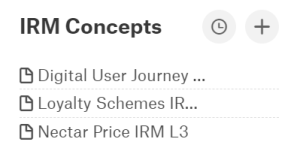
Alation curation process will look for objects that are not tagged in Snowflake and include those objects in the daily curation email that gets sent to the object stewards. Tagging has to be completed for objects deployed in ASpire following this procedure as this will be added as an NFR and compliance is mandatory.